How to Move a Gallery
Learn how you can move a gallery in Picflow.
You can move an existing gallery to a different folder location or into a Sub-Gallery.
Moving from the Dashboard
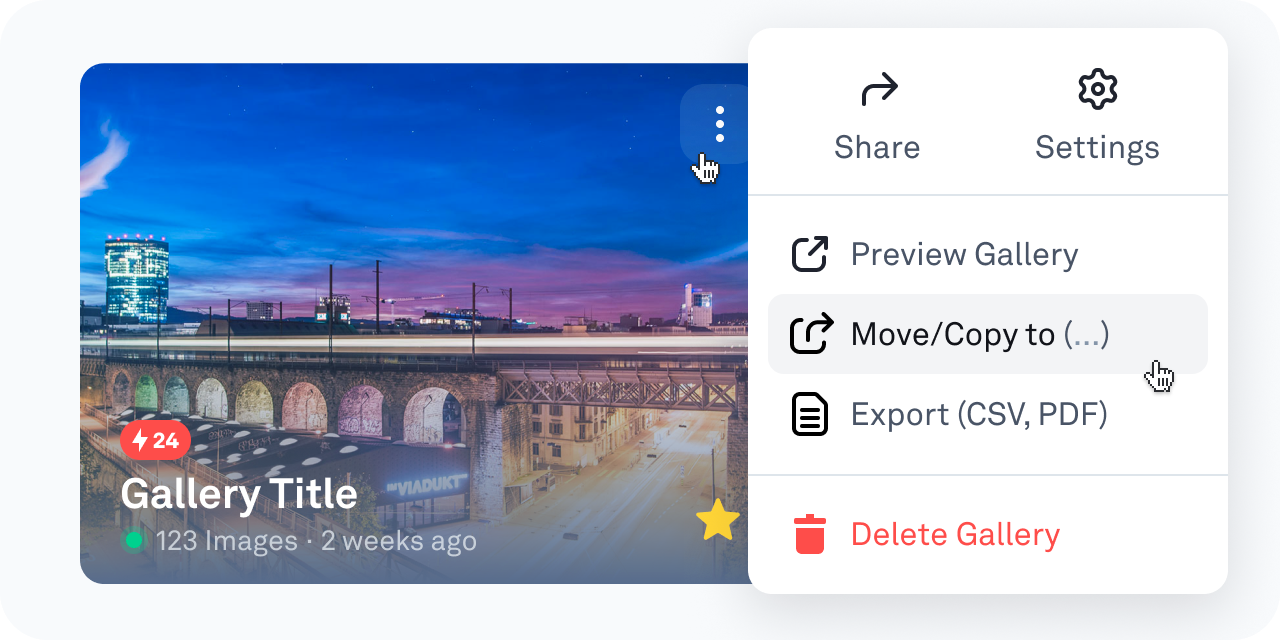
The Picflow Dashboard holds all galleries you have access to. Click the Three Dots on a gallery to find the Move/Copy to (...) option.
Moving from the Context Menu

Within a gallery, you can find the context menu on the top right of the gallery. Click the Three Dots to find the Move/Copy to (...) option.
Moving the Gallery

In the Move/Copy to (...) modal, you now have the option to move the gallery to a different folder location or to move it as a Sub-Gallery:
Move to a Location
You can move the gallery to the root folder of Picflow or inside a folder.Move as a Sub-Gallery
You can also move a gallery into another gallery as a Sub-Gallery.
Was this helpful?
Still need help? Share an idea